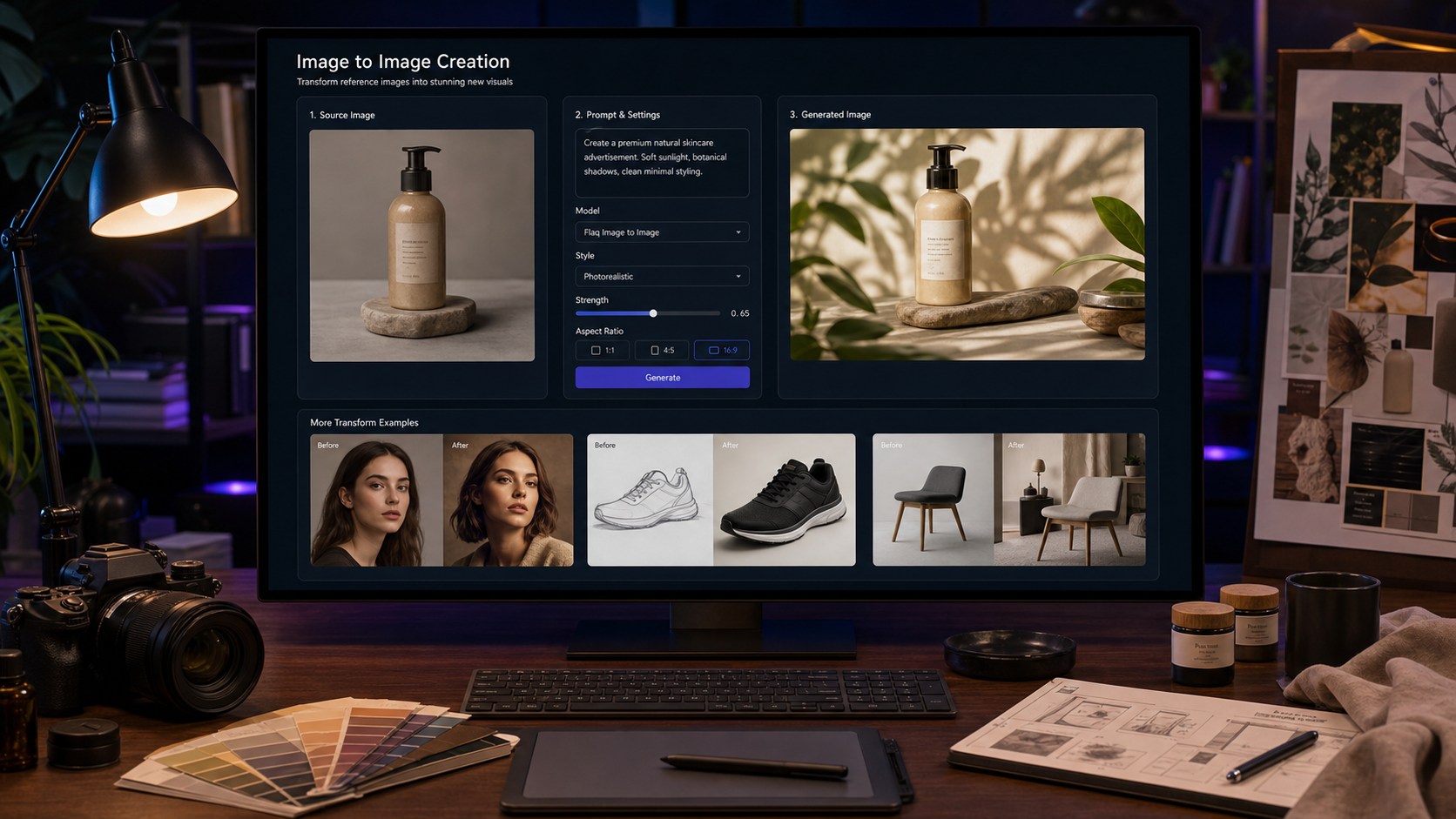
An image to image AI generator helps you use an existing reference image as the starting point for a new visual. Instead of prompting from nothing, you upload a product photo, portrait, sketch, room shot, food image, packaging mockup, or campaign draft, then tell the model what to preserve and what to change.
Flaq AI is a practical place to test this workflow because it provides a direct Image to Image Generator for browser-based editing and model/API pages for more advanced pipelines, including GPT Image 2 Edit API, Qwen Image 2.0 Edit API, Qwen Image 2.0 Pro Edit API, Wan 2.7 Image Edit API, and GPT Image 2 Image Generator & Editor. Treat every output as a creative draft until it passes brand, rights, privacy, and quality review.

How Image-to-Image AI Works on Flaq AI
Image-to-image AI starts with a reference image, then uses your prompt to guide the edit. The source image anchors the subject, layout, pose, product shape, room structure, or visual style, while the prompt tells the model what should change.
On Flaq AI, the no-code workflow is straightforward: open the AI image to image tool online, upload a reference image, select a model, describe the edit, choose available settings such as ratio, quality, or resolution, generate a draft, and compare the result against the original. The key is to separate the “preserve” instructions from the “change” instructions.
This makes image-to-image especially useful for creators and teams that already have a visual direction. A simple product photo can become a campaign image, a sketch can become a polished concept render, and a social banner can be refreshed without rebuilding the layout from scratch.

Prepare the Reference Image Before You Generate
Better source images usually create better edits. If the model cannot clearly see the subject, materials, edges, pose, lighting, or layout, it has more room to invent details you did not ask for.
Use a sharp image with the important subject visible. For ecommerce, show product shape, texture, label placement, and scale. For portraits, use a clear face, natural expression, and clean lighting. For interiors, keep the room layout, window position, and furniture boundaries visible. For sketches, make the silhouette and key design features easy to read.
Before using a reference image AI generator, write down the details that must not change: product dimensions, logo area, colorway, face identity, outfit, layout, composition, or brand palette. Those details belong directly in the prompt.

Write Better Image-to-Image Prompts
A good image-to-image prompt tells the model what to preserve, what to change, what style to apply, and what to avoid. Vague prompts like “make it better” often produce unpredictable changes; specific prompts keep the output closer to your creative goal.
Use this reusable prompt formula:
Use this reference image as the base. Preserve [subject / product / person / object / layout] while changing [specific edit]. Keep [important details to preserve]. Apply [style / lighting / background / mood / composition]. Output should be [use case], with [aspect ratio], [quality level], and no [things to avoid].
For example, an ecommerce prompt should say which product details to preserve and what background to replace. A portrait prompt should preserve identity, expression, and hairstyle while changing lighting or backdrop. A campaign prompt should preserve visual hierarchy while improving the background, composition, and mood.

Choose the Right Image Editing Model or API
Model choice depends on the task, not just the model name. Use Flaq AI’s tool and model pages to compare current availability, supported inputs, API parameters, resolution limits, credit cost, usage rights, and safety restrictions before building a workflow around any specific model.
For flexible editing and prompt-based image changes, start with the GPT Image 2 Edit API or the GPT Image 2 Image Generator & Editor. For teams comparing Alibaba image editing models, review Qwen Image 2.0 Edit API and Qwen Image 2.0 Pro Edit API. For broader image-editing workflows, check Wan 2.7 Image Edit API.
Developers should treat an AI image editing API as a repeatable production component: send accessible image inputs, prompt instructions, model settings, and any supported parameters, then store outputs, logs, prompt versions, and review decisions. Do not assume every model supports the same number of input images, masks, ratios, resolutions, or edit controls.

Best Use Cases: Product Mockups, Style Transfer, Campaign Images, and Visual Variations
Image-to-image creation is strongest when you need controlled change from an existing visual. It is especially useful for product mockups, background replacement, visual variations, social campaign refreshes, interior restyling, food photography improvement, character-consistent assets, and concept renders.
Ecommerce teams can turn a plain product image into a lifestyle scene or product ad while preserving shape and label placement. Designers can convert sketches into polished product concepts. Social media managers can refresh banners, thumbnails, and campaign visuals. Agencies can create multiple directions from one approved reference without losing the core visual idea.
For an AI image variation generator, keep variation prompts narrow. Change one or two major elements at a time, such as background and lighting, rather than asking for a full redesign, new product, new camera angle, and new style all at once.

10 Copy-to-Use Image-to-Image Prompt Examples
Use these prompts with the Flaq AI browser workflow or adapt them for an image editing API for developers after checking the live model page for supported fields.
-
Use this product photo as the base. Preserve the product shape, label placement, and material texture. Replace the background with a bright modern kitchen counter, natural morning light, soft shadows, photorealistic ecommerce style, 16:9.
-
Use this portrait as the base. Preserve the person’s facial identity, hairstyle, and expression. Change the background to a clean editorial studio backdrop with soft rim lighting, professional LinkedIn headshot style, realistic skin texture.
-
Use this sneaker image as the base. Keep the shoe design, colorway, and proportions. Create three lifestyle ad variations on urban pavement, dramatic golden-hour light, shallow depth of field, photorealistic campaign image.
-
Use this sketch as the base. Convert it into a polished product concept render. Preserve the silhouette and core design, add realistic materials, studio lighting, subtle reflections, clean white background.
-
Use this room photo as the base. Keep the layout and window position. Restyle the interior into a warm minimalist living room with oak furniture, cream textiles, natural plants, magazine-style photography.
-
Use this food image as the base. Preserve the dish shape and ingredients. Improve lighting, plating, background, and color balance for a premium restaurant menu photo, realistic and appetizing.
-
Use this character image as the base. Preserve the character’s outfit, face structure, and color palette. Generate a new pose in a cinematic city street scene, rainy reflections, realistic lighting, no extra limbs.
-
Use this packaging image as the base. Keep the logo area blank and preserve the box dimensions. Create a premium skincare product mockup on a marble surface with soft beige lighting.
-
Use this social media banner as the base. Keep the main layout and visual hierarchy. Refresh the background, lighting, and composition for a cleaner product-launch campaign, no unreadable tiny text.
-
Use this reference image as the base. Create a more photorealistic editorial version with better lighting, sharper subject separation, natural shadows, and a polished magazine-style composition.
These examples work best when paired with a strong reference image and a short list of preserved details. If the output drifts, simplify the prompt and test again before changing models.

Review, Rights, and Publishing Cautions
Image-to-image outputs should be treated as polished drafts, not automatic final assets. Before publishing, compare the result with the source image and check subject consistency, product accuracy, face and hand quality, text artifacts, resolution, background realism, watermark/export rules, privacy, and brand approval.
For commercial work, verify rights before using an output in ads, ecommerce, client campaigns, or social posts. Check the live Flaq AI page for model availability, image-input limits, credit cost, API parameters, output resolution, commercial-use rights, privacy settings, watermark/export rules, and supported image-input features. Do not claim guaranteed free access, unlimited use, watermark-free export, official model partnership, or privacy protection unless the live page confirms it.
For teams comparing tools, read related Flaq AI resources such as GPT Image 2 API and Prompt Guide, ChatGPT Image 2 API, Nano Banana 2 API Guide, and Image to Video Creation Guide. People also read image workflow guides from HeyDream, SeaImagine, Flyne, Chat4O, and Fylia.
FAQ
What is an image to image AI generator?
An image to image AI generator uses a reference image plus a prompt to create an edited, restyled, rebuilt, or visually improved output.
Can I use image-to-image AI for ecommerce product photos?
Yes, but verify product accuracy carefully. Preserve shape, materials, label placement, and scale, then review the result before publishing or using it in ads.
Is an AI image editing API better than a browser tool?
A browser tool is better for quick creative testing. An API is better when developers need repeatable workflows, logs, prompt versions, and integration into internal tools.
Can image-to-image AI preserve a person or character exactly?
It can help preserve identity or character cues, but outputs can drift. Review faces, clothing, pose, hands, and proportions before using the result publicly.
Conclusion: A practical image to image AI generator workflow starts with a clear reference image, a precise preserve/change prompt, the right model or API, and a careful review step. Flaq AI is useful because it supports quick browser-based image-to-image testing and gives developers model pages for planning scalable AI image generator and editor workflows.