Turn your ideas into polished visuals in seconds — try Free GPT Image 2 for free and create high-quality AI images from simple text prompts without slowing down your creative workflow. Add playful edits, creative effects, and fresh visual styles to your images — try Free Nano Banana AI for free and make every picture more fun to share.
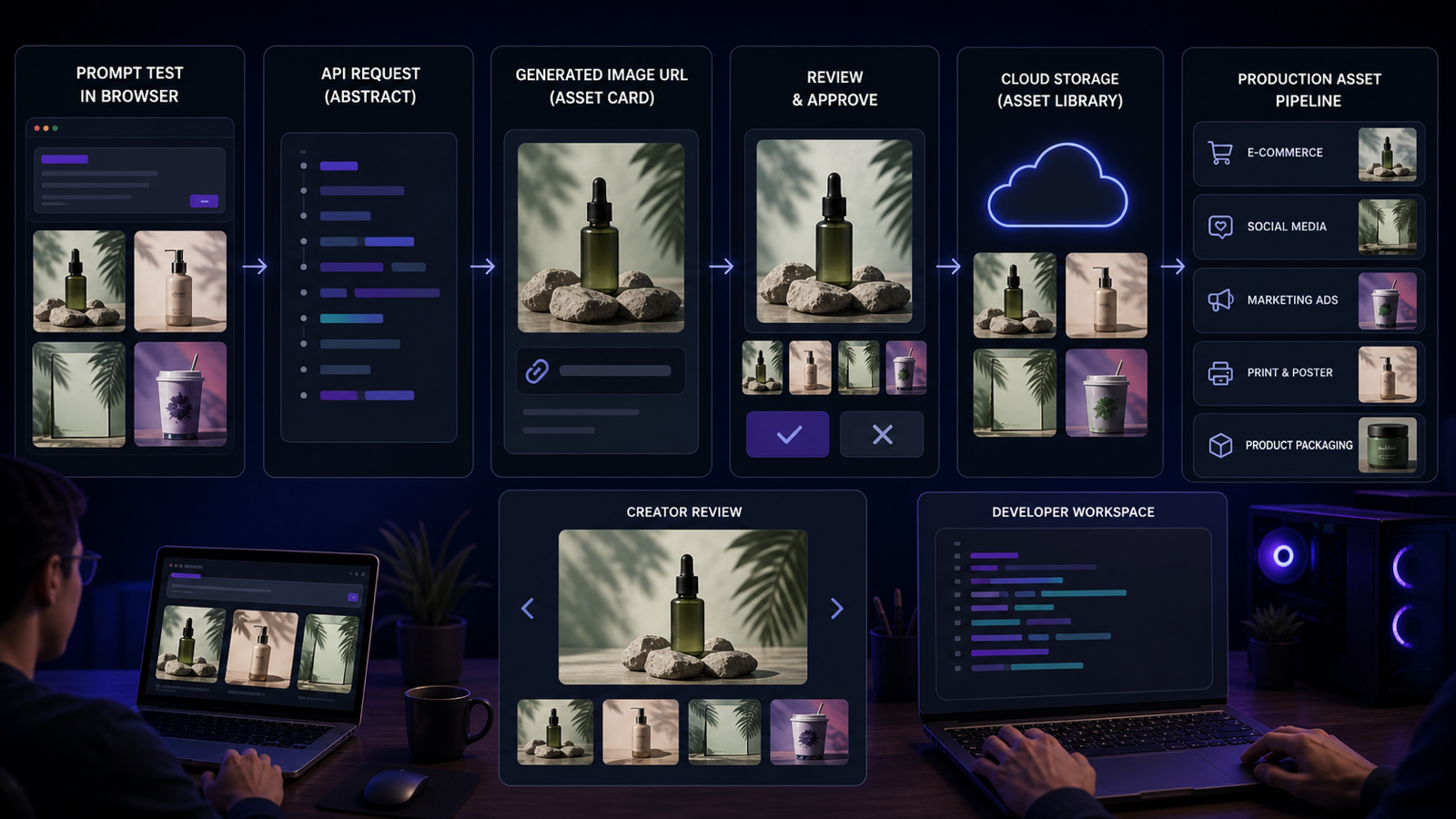
The GPT Image 2 API is useful when teams want to turn image prompts into repeatable creative workflows: campaign visuals, product images, social media graphics, thumbnails, posters, brand assets, UI visuals, and creative prototypes. On Flaq AI, creators can test prompts in a browser and developers can move successful prompts into API-style generation, which makes it practical for both experimentation and production planning.

Current-source note: this guide uses publicly visible Flaq AI pages checked on May 28, 2026, plus official OpenAI image API documentation for general product caution. API availability, pricing, credit cost, output quality, supported size, commercial terms, privacy settings, and model behavior may change. Verify Flaq AI’s current docs, billing, and usage terms before building production workflows.
Quick Summary: What GPT Image 2 API Is Useful For
GPT Image 2 is most useful when an image prompt needs to become a repeatable creative asset, not just a one-off experiment. On Flaq AI, the GPT Image 2 model page is positioned for text-to-image generation with prompt, quality, ratio, and resolution controls, plus an API workflow that creates a task and polls for results. That makes it relevant for developers, marketers, designers, e-commerce teams, and AI tool builders.
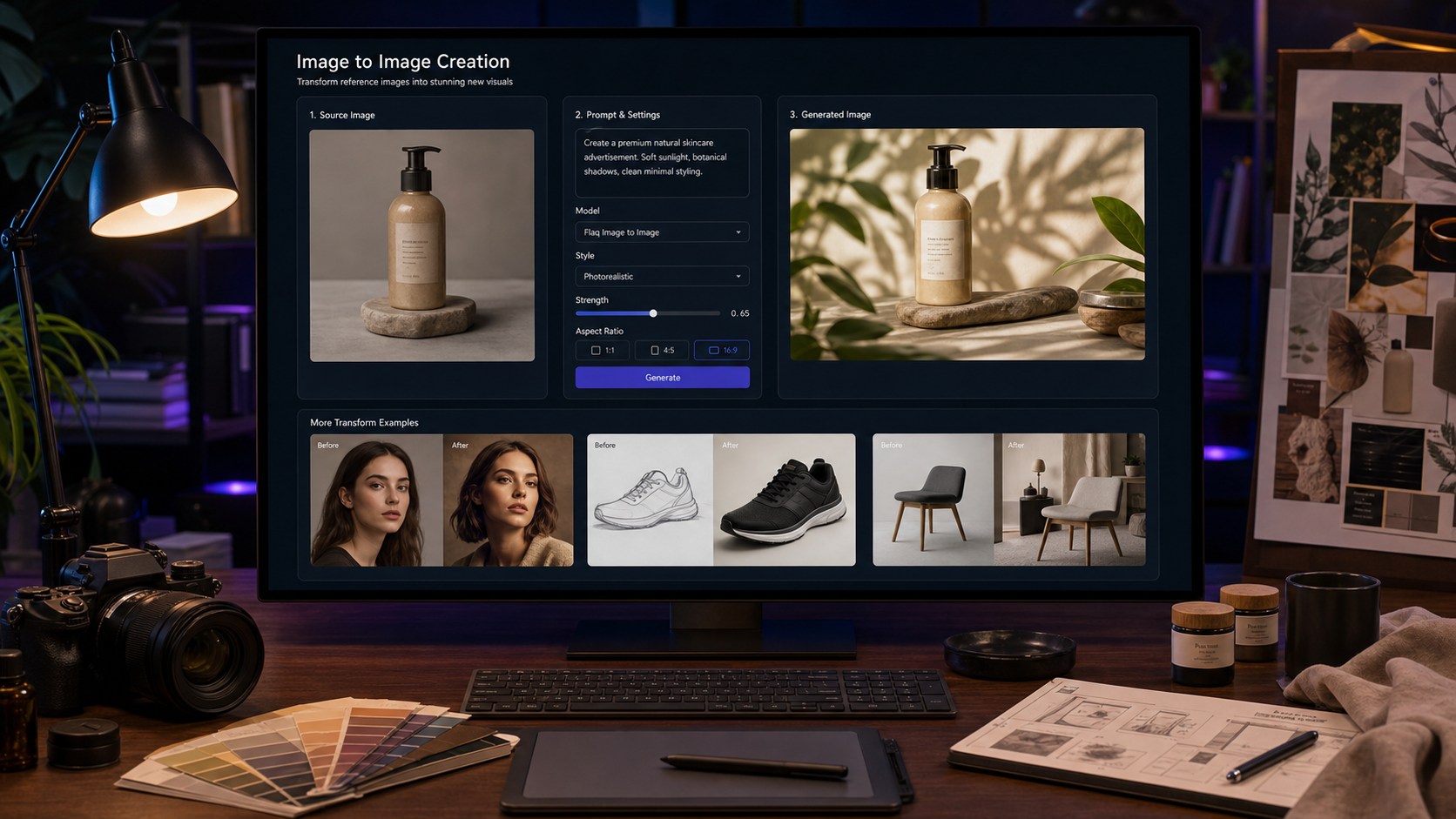
Use GPT Image 2 for prompt-first creative work such as product hero shots, social ads, YouTube thumbnails, app store images, posters, brand mood boards, e-commerce mockups, campaign concepts, and UI-style visuals. Use the GPT Image 2 Edit API when the workflow starts with one or more images and the goal is image-to-image editing, background replacement, reference-based changes, object refinement, or style consistency.
Flaq AI is the practical recommendation because it gives teams two useful paths in one place: browser-based testing through Free GPT Image 2 and API access through model pages and Flaq AI docs. Test in the browser first, save the prompts that work, then integrate only the workflows that are stable enough for production.

GPT Image 2 API vs GPT Image 2 Edit API
Use the image generation API when the input is mainly text. Use the edit API when the input includes existing images that must be preserved, changed, blended, or refined. This distinction matters because the best prompt structure changes depending on whether the model is inventing the whole scene or modifying a specific asset.
The GPT Image 2 image generation API is best for:
- Text-to-image generation from a campaign brief.
- Social media graphics and poster concepts.
- Product hero images for fictional or generic products.
- Brand mood boards and creative prototyping.
- Thumbnails, app visuals, and SaaS-style compositions.
The GPT Image 2 image editing API is best for:
- Editing uploaded product photos.
- Replacing backgrounds while preserving product shape.
- Refining lighting, shadows, materials, and composition.
- Combining multiple references for style or layout consistency.
- Creating production image variations from existing assets.
On Flaq AI, the edit model page visibly supports image uploads and image_url_list in API examples, while the generation page centers on prompt-based output. If you are building with direct OpenAI APIs instead of Flaq, check OpenAI’s current image API documentation because endpoint names, model names, parameters, and supported image features may differ from Flaq’s abstraction.

Developer Workflow: From Prompt Test to API Integration
The safest developer workflow is to test visually before integrating. An image API can be technically available and still fail the specific creative standard your app needs. Start with browser tests, then move only stable prompts into API calls.
Use this workflow:
- Choose the model: GPT Image 2 for text-to-image or GPT Image 2 Edit for image-to-image editing.
- Test the prompt in Flaq AI’s browser workflow.
- Set aspect ratio, output size, and quality based on the platform: square for social ads, vertical for posters, wide for website heroes.
- Generate or edit the image.
- Review product accuracy, style, layout, text behavior, artifacts, and commercial suitability.
- Save the prompt, input images, parameters, and output notes.
- Move the stable workflow into the API using Flaq’s docs and model examples.
- Add production checks: retries, error handling, moderation, storage, review queues, and cost tracking.
In production, treat prompt text as application logic. Version it, test it, and keep a fallback prompt or fallback model when the image matters to a user-facing workflow. For e-commerce or ads, also keep a human review step before publishing generated assets.

Reusable Text-to-Image Prompt Formula
Strong GPT Image 2 prompts read like compact creative briefs. They describe the asset, the use case, the subject, the setting, style, composition, lighting, palette, text requirements, and constraints. That makes the output easier to evaluate and easier to reproduce through an API.
Copy this formula:
Create a high-quality [image type] for [use case]. Subject: [main subject]. Setting: [background/environment]. Style: [photorealistic/editorial/product ad/SaaS/3D/render/poster/social media]. Composition: [close-up/centered/wide/vertical/square/hero layout]. Lighting: [soft studio/natural/cinematic/neon/warm]. Color palette: [colors]. Text requirements: [exact text or no readable text]. Constraints: [avoid logos, celebrity faces, copyrighted characters, clutter, fake claims]. Output should be clean, commercially usable, and suitable for [platform].
For marketing and product visuals, be specific about text. If the final copy must be exact, it is often safer to request no readable text and add typography later in a design tool. If you do request text, keep it short, verify it manually, and do not rely on generated claims for regulated or product-sensitive categories.

Reusable Image Editing Prompt Formula
Editing prompts should say what to change and what to preserve. The most common failure in image editing is asking for a better image while accidentally changing the product, person, layout, color, or material that needed to stay fixed.
Copy this formula:
Edit the uploaded image to [main change]. Preserve [identity/product shape/layout/colors/materials]. Change only [target area]. Improve [lighting/background/composition/texture/sharpness]. Style: [photorealistic/product ad/editorial/e-commerce/social]. Avoid changing [important elements]. Keep the result natural, consistent, and commercially usable.
For the GPT Image 2 multi-image editing API, label each reference clearly in your own workflow before sending it. For example: product image, background reference, lighting reference, layout reference, and style reference. The clearer your internal asset roles are, the easier it is to debug results later.

14 Copy-to-Use GPT Image 2 Prompt Examples
Use these prompts as browser tests before moving them into an API workflow. Keep the first test simple, then add constraints only when the output fails in a specific way.
1. Skincare Serum Product Hero
Create a photorealistic product hero image for a skincare serum. The bottle is centered on a marble bathroom counter with soft morning light, subtle water droplets, warm neutral background, premium beauty ad mood, clean negative space, no readable brand text.
2. Coffee Subscription Social Ad
Create a square social media ad for a coffee subscription box. Show a coffee package, cup of hot coffee, roasted beans, and warm morning sunlight on a wooden table. Cozy lifestyle photography, clean composition, empty space for headline text, no real logos.
3. Productivity App Poster
Create a vertical 9:16 poster for a productivity app. Show a clean desk, laptop, notebook, floating abstract task cards, blue-white tech lighting, modern SaaS mood, professional composition, no readable fake UI text.
4. Travel Backpack Product Listing
Create an e-commerce product image of a travel backpack on a clean white background. Show zipper details, side pocket, laptop compartment, durable fabric texture, centered composition, sharp product lighting, realistic shadows.
5. Fashion Lookbook Image
Create a premium fashion lookbook image of a model wearing a minimalist beige coat in a clean studio. Editorial lighting, realistic fabric texture, soft shadows, elegant neutral palette, no celebrity likeness, no brand logos.
6. AI Image API YouTube Thumbnail
Create a YouTube thumbnail concept about AI image APIs. Show a developer laptop, API code-like abstract panels, image preview cards, and a large clean title area. High-contrast tech style, blue-purple lighting, no tiny unreadable text.
7. Wellness Brand Mood Board
Create a brand mood board for a modern wellness company. Include color swatches, packaging mockups, abstract botanical textures, clean typography placeholders without readable brand names, soft green and cream palette, premium editorial layout.
8. Wireless Earbuds Product Launch Poster
Create a product launch poster for wireless earbuds. Earbuds float above a reflective surface, soft blue rim lighting, clean black background, premium tech commercial style, empty space for headline, no readable brand text.
9. Matcha Latte Food Photo
Create a realistic food photography image of matcha latte over ice. Bright natural kitchen light, condensation on glass, cookies on a ceramic plate, clean tabletop styling, refreshing summer mood, high-end lifestyle photo.
10. AI Writing Tool App Store Hero
Create an app store hero image for an AI writing tool. Show a laptop with abstract writing cards, organized notes, soft office lighting, clean SaaS workspace, professional and trustworthy mood, no readable UI text.
11. Product Photo to Studio Ad
Edit the uploaded product photo into a premium studio product ad. Preserve the exact product shape, color, label placement, and packaging design. Replace the background with a soft gradient studio setup, improve lighting, add realistic shadows, and keep the image photorealistic.
12. Portrait to Editorial Profile
Edit the uploaded portrait into a professional editorial profile image. Preserve the person's identity, face shape, hairstyle, and expression. Improve lighting, replace the background with a neutral studio backdrop, keep skin texture natural, no glamour distortion.
13. Clothing Catalog Cleanup
Edit the uploaded clothing product image into a clean e-commerce catalog photo. Preserve the garment shape, fabric, color, and stitching. Remove background clutter, place on a light neutral background, improve folds and texture clarity.
14. Skincare Multi-Image Campaign
Create a multi-image campaign concept for a skincare brand: product hero image, bathroom lifestyle image, texture close-up, and social ad layout. Keep the same bottle design, color palette, lighting direction, and premium beauty style across all images.
For API workflows, save each prompt with its intended ratio, quality, input images, and review result. A prompt that works for square social ads may need adjustment for a wide website hero or vertical poster.

Use Cases for Developers, Marketers, Designers, and E-Commerce Teams
GPT Image 2 is useful when visual generation needs to connect to a real workflow. Developers may care about API reliability, payload design, task polling, error handling, and storage. Marketers care about brand fit, ad formats, campaign consistency, and review speed. Designers care about composition, typography space, visual hierarchy, and editability. E-commerce teams care about product accuracy, background control, and output consistency.
Use text-to-image generation for early concepts and net-new assets:
- Campaign concepts and mood boards.
- Social media graphics and posters.
- YouTube thumbnails and app store heroes.
- Generic product ad visuals.
- Website hero images and blog covers.
Use image editing for production asset refinement:
- Product photo cleanup.
- Background replacement.
- Portrait lighting improvement.
- Clothing catalog cleanup.
- Multi-image campaign consistency.
The browser-to-API path is especially useful for teams that need both creative iteration and engineering control. A marketer can validate the visual direction manually, then a developer can integrate the stable prompt into a content tool, creative automation system, or internal dashboard.

Quality, Ratio, Privacy, Cost, and Production Checks
Do not move an image API workflow into production until it has passed a review checklist. API availability, pricing, credit cost, output quality, supported size, privacy settings, and model behavior may change, and generated images can still include visual mistakes.
Before shipping, check:
- Current Flaq AI model availability and docs.
- Current billing, credits, and usage terms.
- Supported ratio, width, height, and quality settings.
- Whether public/private output behavior fits your use case.
- Whether generated images are high enough quality for the platform.
- Whether product claims, packaging, text, and layout are accurate.
- Whether uploaded assets are licensed for editing.
- Whether outputs avoid copyrighted characters, real logos, celebrity likenesses, and unlicensed brand assets.
- Whether you need human review before publishing or delivering to customers.
For commercial images, build a review layer into the workflow. A generated image can be beautiful and still unusable if it changes a product, implies a false claim, or includes an unlicensed visual element.

Recommended Articles for GPT Image 2 and Flaq AI Workflows
Use these related articles when you want broader context on image models, Flaq APIs, and adjacent video API workflows.
Related articles:
- ChatGPT Image 2 Is Here: A Practical Review of OpenAI's New Image Model and API Access
- Nano Banana 2 API Guide: How to Use Flaq AI for Fast Image Workflows
- Flaq AI Video Models Review: Which Video API Should You Use?
- Kling 3 API Guide: Standard vs Pro, Pricing, and How to Use It on Flaq AI
- Seedance 2.0 API Guide: How to Use Flaq AI for Faster Text-to-Video Workflows
- VEO 3.1 Text-to-Video API on Flaq AI: Features, Pricing, and How to Use It
People also read:
- ChatGPT Image 2 Turns Prompts Into Pipelines: What's New and Where to Access the API
- GPT Image 2 Fashion Guide: Build Lookbooks, Outfit Concepts, Product Photos, and Virtual Try-On Visuals
- How to Build a Brand Kit with ChatGPT Image 2?
- GPT Image 2 OpenAI API: What It Offers and How to Try It
- ChatGPT Image 2 Release: Features, Prompts, and API Guide
- ChatGPT Image 2 vs Seedream 5: Which AI Image Model Should You Use?
- GPT Image 2 Prompt Playbook: Build Posters, Anime Assets, Wallpapers, and 3D Character Concepts Faster
- GPT Image 2 Explained: What's New and How It Compares With Nano Banana Pro
For production teams, combine reading with hands-on testing. Documentation and examples help, but your best guide is how the model performs on your own products, brand assets, ratios, and review standards.

FAQ: GPT Image 2 API, Flaq AI, and Image Editing
What is GPT Image 2 API useful for?
GPT Image 2 API is useful for text-to-image workflows such as product images, social media graphics, thumbnails, posters, brand assets, UI visuals, e-commerce mockups, and creative prototyping. On Flaq AI, it can be tested visually before API integration.
What is GPT Image 2 Edit API?
GPT Image 2 Edit API is for image-to-image editing workflows. Use it when you need to edit uploaded images, preserve product or identity details, replace backgrounds, refine objects, blend references, or create consistent production variants.
Can I try GPT Image 2 online before using the API?
Yes. Flaq AI provides a Free GPT Image 2 browser workflow for prompt testing. Use it to validate prompt structure, ratio, style, and quality before integrating API calls.
Should I use exact text in GPT Image 2 prompts?
Use exact text only when you can manually verify the result. For ads, thumbnails, posters, and UI visuals, it is often safer to request no readable text or blank headline space, then add final copy in a design tool.
What should commercial teams avoid?
Avoid copyrighted characters, real logos, celebrity likenesses, misleading product claims, unlicensed brand assets, and unclear rights. Also verify Flaq AI’s current usage terms, privacy settings, billing, and model behavior before production use.

Conclusion: Build GPT Image 2 Workflows Like Creative Systems
The best GPT Image 2 API workflow is a creative system: test prompts in the browser, document what works, choose generation or editing, set ratio and quality, review outputs, then integrate through API only when the workflow is stable. This keeps experimentation fast and production safer.
Use Flaq AI when you want browser-based GPT Image 2 testing plus API access in one workflow. Start with the prompt formulas and examples above, verify current docs and billing, and keep human review in place for commercial images.