An Image to Video AI workflow turns a still image into a short motion clip by combining a source image, a motion prompt, model settings, and output review. On Flaq AI, creators can test image animation in a browser, compare models in the Model Market, and then move repeatable workflows into the AI Video Generator API when a project needs scale.
This guide is for creators, developers, marketers, ecommerce teams, product teams, social media managers, automation builders, agencies, and AI video beginners who want a practical way to turn product shots, portraits, campaign images, storyboards, and concept art into short videos. The important mindset is simple: image-to-video output is a creative draft. Review motion, consistency, rights, product claims, platform rules, and brand safety before publishing or running paid campaigns.

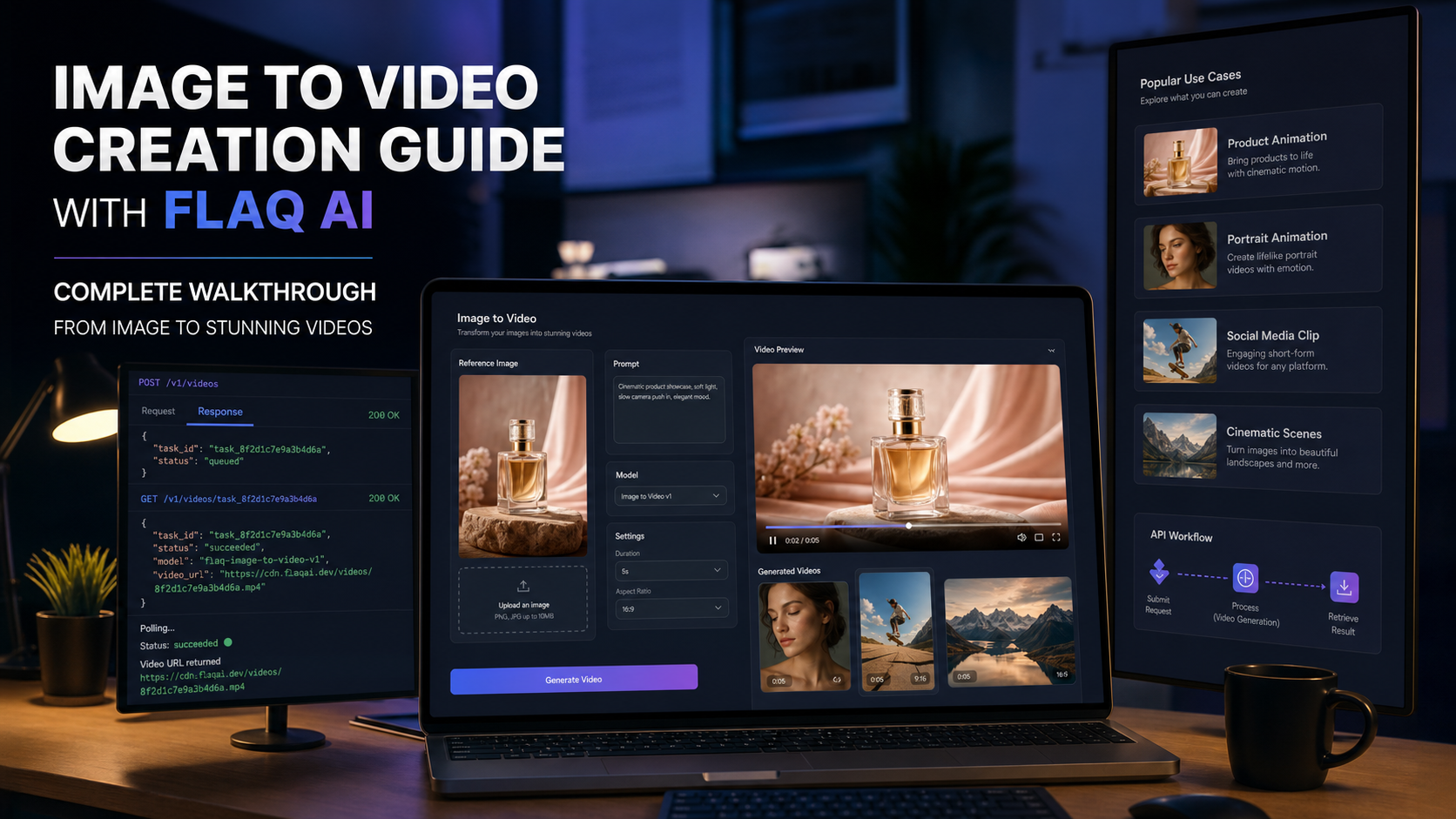
Quick Workflow: How Image to Video AI Works on Flaq AI
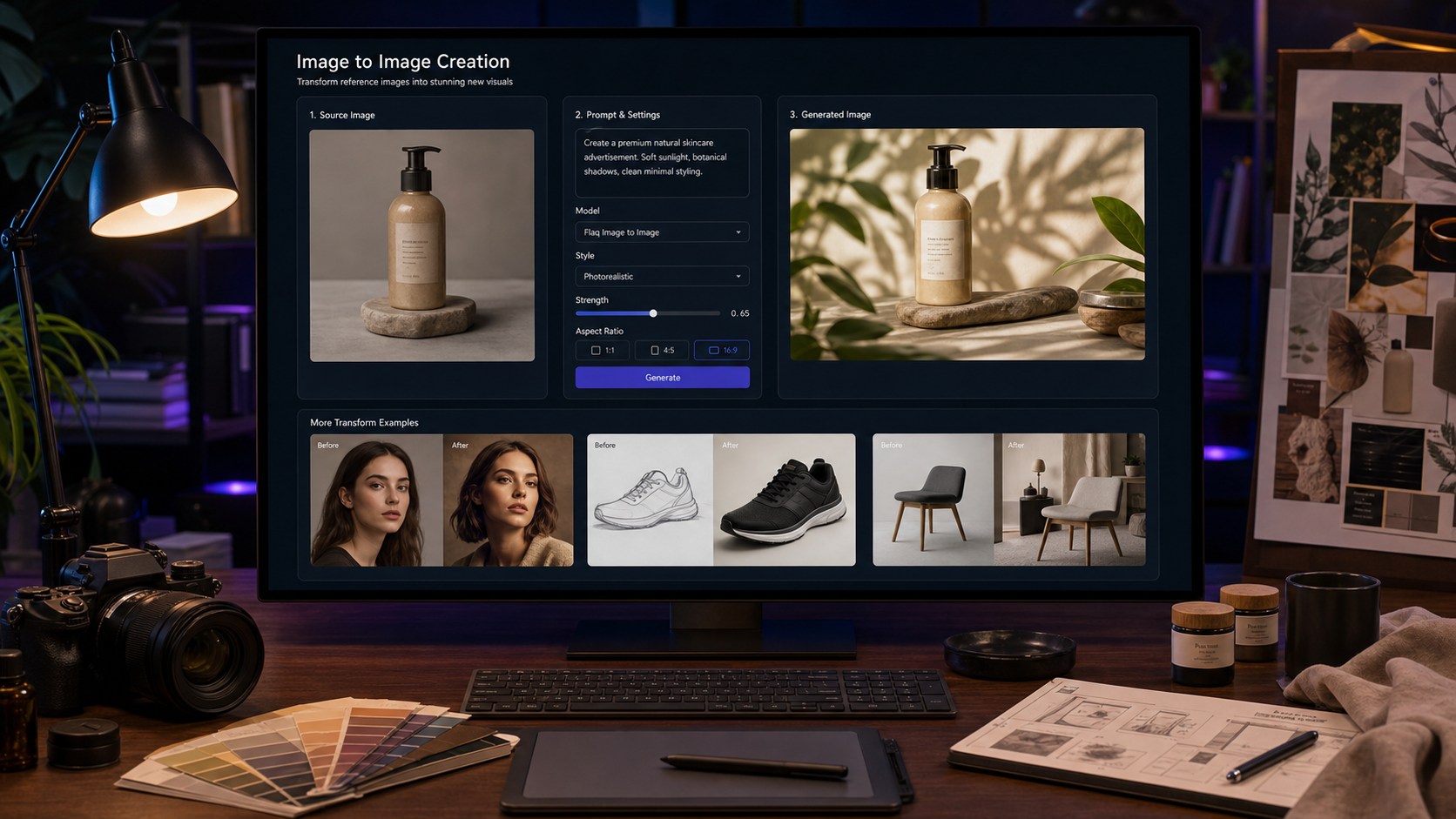
The basic workflow starts with a clear source image, adds prompt-guided motion, then uses a video model to predict how the scene should move. Flaq AI is useful because it gives no-code users a direct image to video AI generator for testing and gives developers model/API pages for implementation planning.
Use this practical sequence:
- Open the Image to Video AI Generator.
- Upload a source image or use an accessible image URL.
- Choose an image-to-video model.
- Write a prompt that separates subject motion, camera motion, environment motion, mood, lighting, and avoid rules.
- Configure model-dependent settings such as duration, aspect ratio, resolution, sound, end frame, seed, camera lock, or negative prompt when supported.
- Generate a draft video.
- Review consistency, motion, product accuracy, hands/faces, text artifacts, and audio timing.
- Refine one variable at a time: image, prompt, model, duration, ratio, or negative prompt.
This makes Flaq AI a useful bridge between browser-based creative testing and production-style Image to Video API workflows.

Start With the Right Source Image
Image-to-video generation works best when the input image clearly defines the subject, framing, lighting, scene, and style. A vague or cluttered source image gives the model more room to invent details, while a sharp image with clean composition gives the model stronger anchors.
Good source images include product photos, ecommerce packaging shots, portraits, character frames, campaign visuals, lifestyle photos, concept art, and storyboard frames. For product ads, make sure the product shape, label placement, materials, and important edges are visible. For portraits, keep the face, outfit, pose, and background clear. For cinematic landscapes, avoid busy foreground objects unless they are meant to move.
Before you generate, decide what must stay consistent: product design, label placement, face, outfit, color palette, background layout, brand assets, camera framing, or illustration style. That list should appear in the prompt because the model needs to know what is allowed to move and what should remain stable.

Write Prompt-Guided Motion That Separates Subject, Camera, and Environment
A strong AI photo to video workflow prompt explains motion in layers. Instead of saying “make this image cinematic,” describe the main subject action, the camera move, background motion, lighting changes, mood, and what to avoid.
Use this reusable image-to-video formula:
Animate this image into a [duration] [aspect ratio] video for [use case/platform]. Keep [subject/product/face/outfit/style/layout] consistent. Main motion: [what moves]. Camera: [push-in/orbit/tracking/top-down/handheld/zoom-out/static]. Environment motion: [light shift, wind, mist, steam, water, fabric, reflections]. Mood: [premium/UGC/cinematic/cozy/futuristic/playful]. Lighting: [studio/natural/neon/golden hour/warm indoor]. Audio: [none/ambient sound/music cue/voiceover-ready/product sound] if supported. Avoid [distorted hands, warped faces, changing product shape, fake logos, unreadable text, flicker, blur, unsafe likenesses, exaggerated claims].
For example, a product animation prompt might ask the bottle to rotate while the camera slowly pushes in and mist moves behind it. A portrait prompt might ask for a subtle head turn, natural expression, and soft background light movement. A landscape prompt might ask for cloud drift, water ripples, and a slow pullback. Clear motion limits usually work better than asking for many scene changes in one short clip.

Compare Image-to-Video Models by Use Case, Not by One Universal Winner
The best image-to-video model depends on the job. Use the Flaq AI Model Market to compare available models, provider pages, pricing/credit information, and documentation before choosing a production workflow.
For premium cinematic image animation, start by comparing Veo 3.1 Image-to-Video API, Wan 2.7 Image-to-Video API, and Kling 3.0 Pro Image-to-Video API. These are useful when the output needs stronger visual polish, cinematic camera language, or higher production value.
For product ads and ecommerce visuals, compare Seedance 2.0 Image-to-Video API, Kling 3.0 Standard Image-to-Video API, Happy Horse 1.0 Image-to-Video API, and Wan 2.7. These are sensible choices when a product image must stay recognizable while camera, lighting, or setting adds motion.
For fast social variations, test Vidu Q3 Turbo Image-to-Video API, Veo 3.1 Fast Image-to-Video API, Pixverse C1 Image-to-Video API, Pixverse V6 Image-to-Video API, and Happy Horse. For reference-guided workflows, compare Seedance 2.0 Fast Reference-to-Video API, reference-oriented Kling workflows, and Wan workflows where reference/audio fields are supported.
The safest comparison method is to test the same image and motion prompt across several models. Compare prompt following, motion quality, subject consistency, audio behavior if supported, runtime, credit cost, privacy settings, and export needs.

Configure Duration, Ratio, Resolution, Sound, End Frame, Seed, and Negative Prompt Carefully
Image-to-video settings are model-dependent, so do not assume every option appears on every page. Before publishing advice, verify the current model page and docs for availability, pricing, credit cost, output duration, supported aspect ratios, supported resolutions, audio support, end-frame support, seed support, camera-lock controls, negative prompt support, watermark rules, export limits, API payload fields, privacy policy, and commercial-use terms.
For social content, 9:16 usually fits TikTok, Reels, and Shorts concepts. For ecommerce banners, presentations, and website embeds, 16:9 may be easier to reuse. For feed posts and marketplace creative, 1:1 or 4:5 can work when the model supports it. Duration should match the motion: a simple product push-in may only need a few seconds, while a travel scene or packaging reveal may need a longer clip.
Use negative prompts and avoid rules to protect important details. For example, tell the model to avoid changing product shape, inventing labels, distorting hands, warping faces, adding fake logos, blurring text, or creating unsafe likenesses. Then review the output manually because prompts reduce risk, but they do not guarantee perfect control.

Move From Browser Testing to Image to Video API Production
Developers should start manually before automating. Test the image and prompt in the Flaq playground-style interface, compare model behavior, then implement the API only after the workflow has a reliable primary model and fallback model.
The common image to video generation API pattern is submit and poll:
- Choose a model page.
- Test the image and prompt in the Playground.
- Review supported fields such as
model_name,prompt,aspect_ratio,duration,resolution,image_url,image_end_url,audio_url,video_url,negative_prompt, andseed. - Submit a video generation task.
- Store the returned
task_id. - Poll the task endpoint until the status is
succeedorfailed. - Save the returned video URL.
- Log credits, runtime, model, prompt version, and failure reason.
Production workflows need safeguards. Use uploaded image URLs that are accessible to the API, validate file format and size before submission, add retry logic, handle timeouts, store failure messages, keep prompt versions for QA, track cost by model, and include human review before publishing or sending outputs to clients. For user-generated inputs, add moderation and content-safety checks before generation and after output review.

12 Copy-to-Use Image-to-Video Prompts
Use these examples in Flaq AI’s browser workflow or adapt them for an AI image to video API payload after checking the model’s supported fields.
-
Animate this product image into an 8-second 9:16 video for a TikTok ad. Keep the bottle shape, color, and label placement consistent. Main motion: the bottle slowly rotates while soft mist moves across the surface. Camera: slow push-in. Lighting: warm premium studio light. Mood: elegant ecommerce product showcase. Avoid fake logos, unreadable text, and changing product design.
-
Animate this fashion portrait into a 7-second 9:16 video. Keep the face, outfit, fabric color, and pose consistent. Main motion: the subject turns slightly toward camera while hair and coat move gently in the wind. Camera: low tracking shot. Lighting: rainy neon street reflections. Mood: stylish cinematic fashion reel. Avoid face warping and outfit changes.
-
Animate this coffee mug image into a 6-second 4:5 social video. Keep the mug design and table layout consistent. Main motion: steam rises naturally while sunlight moves across the desk. Camera: slow close-up push-in. Mood: cozy morning lifestyle. Audio: soft café ambience if supported. Avoid fake brand text and unrealistic steam.
-
Animate this backpack product photo into a 10-second 9:16 video. Keep the backpack shape, straps, color, and compartments consistent. Main motion: packing cubes slide into the bag and the zipper closes. Camera: top-down to side-angle movement. Lighting: warm hotel-room daylight. Mood: practical travel UGC. Avoid fake airline logos and product deformation.
-
Animate this mountain lake image into a 10-second 16:9 cinematic video. Keep the mountains and lake composition stable. Main motion: clouds drift, water ripples, and sunlight breaks through the peaks. Camera: slow drone-like pullback. Mood: peaceful travel film. Avoid warped mountains and unrealistic water motion.
-
Animate this sneaker product image into an 8-second 9:16 video. Keep the shoe design, sole shape, color, and texture consistent. Main motion: the camera orbits around the shoes while the laces move subtly. Lighting: bright editorial studio light. Mood: clean premium sports ad. Avoid changing the shoe design or adding fake logos.
-
Animate this illustration into a 12-second 16:9 motion-comic scene. Keep the character design and art style consistent. Main motion: cape moves in the wind, city lights turn on, and the camera pushes from wide shot to close-up. Mood: dramatic but original. Avoid copyrighted character details.
-
Animate this app mockup image into a 6-second 9:16 product explainer. Keep the phone frame and UI layout consistent. Main motion: abstract task cards gently slide into place. Camera: clean studio push-in. Lighting: bright SaaS-style setup. Avoid real app logos and unreadable tiny text.
-
Animate this food photo into an 8-second 1:1 video. Keep the bowl composition and ingredients consistent. Main motion: honey drips slowly, granola shifts subtly, and kitchen light moves across the table. Camera: macro side pan. Mood: appetizing editorial food video. Avoid unrealistic liquid motion and messy background.
-
Animate this poster image into a 6-second 16:9 teaser video. Keep the typography area stable and readable. Main motion: background particles move subtly, light sweeps across the title area, and the camera pushes in slightly. Mood: polished launch teaser. Avoid text distortion and flicker.
-
Animate this portrait photo into a 6-second 4:5 professional profile video. Keep facial identity, clothing, and background consistent. Main motion: subtle head turn, natural expression, and soft background light movement. Camera: medium close-up. Mood: polished editorial portrait. Avoid identity drift and exaggerated facial movement.
-
Animate this product packaging image into a 9-second 16:9 ecommerce video. Keep package shape and label position consistent. Main motion: box rotates slightly, ingredients appear around it, and shadows shift naturally. Camera: slow orbit. Lighting: soft studio light. Avoid fake certification badges and misleading health claims.

Review Outputs, Rights, and Brand Safety Before Publishing
Treat image-to-video generations as draft creative until they pass review. Check subject consistency, motion quality, camera behavior, product accuracy, readable text, hands, faces, audio timing, scene coherence, watermark rules, export limits, and whether the final video matches the intended platform.
For commercial use, verify rights and policies before publishing. Check commercial-use terms, privacy policy, source-image rights, music/audio rights, product-claim accuracy, platform ad policies, disclosure requirements, brand guidelines, and client approval rules. Do not generate copyrighted characters, celebrity likenesses, protected IP scenes, unsafe deepfake content, or misleading before/after claims.
Useful Flaq AI reading includes Flaq AI Video Models Review, Kling 3 API Guide, Seedance 2.0 API Guide, Wan 2.7 API Guide, Alibaba HappyHorse AI, Grok Imagine Text-to-Video API, and Gemini Omni Video and Veo 4 Release Watch.
People also read guides on Veo 3.1 video generation, Dream Machine AI video generation, VideoWeb AI workflows, SeaImagine text-to-video, Vidu Q1 image-to-video, best AI image-to-video models, and Higgsfield image-to-video.
FAQ
Can I turn any image into a video with AI?
You can test many images, but clear images with visible subjects, clean framing, and stable lighting usually work better than cluttered or low-resolution inputs.
Is browser testing enough before using an Image to Video API?
Browser testing is the best first step, but API production also needs accessible image URLs, payload validation, retries, timeouts, logging, cost tracking, and human review.
Which model should I try first for product videos?
Start with the model pages that fit product-friendly image animation, such as Seedance 2.0, Kling 3.0, Happy Horse, or Wan 2.7, then compare the same image and prompt across models.
Do all image-to-video models support audio, end frames, seeds, and negative prompts?
No. These controls are model-dependent, so check the current Flaq AI model page and docs before building a fixed workflow around any specific field.
Conclusion: An Image to Video AI workflow works best when you start with a strong image, write controlled motion prompts, compare models by use case, configure settings carefully, and review every draft before publishing. Flaq AI is a practical place to test image animation in the browser, compare AI Video Models, and move successful workflows into an AI Video Generator API for repeatable production.