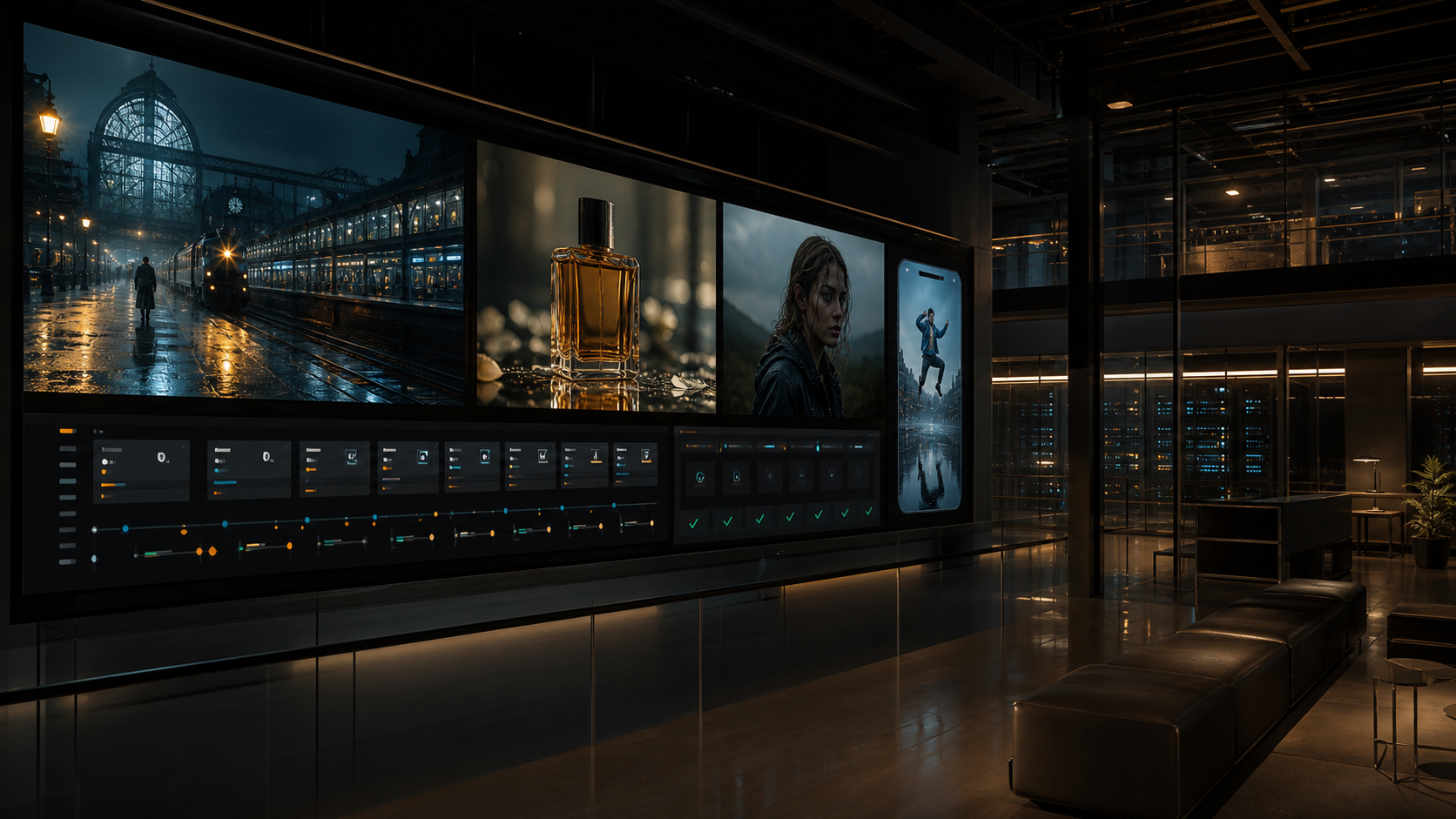
The Grok Imagine Text-to-Video API page on Flaq AI is built for two kinds of users: creators who want to test prompts in a no-code Playground, and developers who want hosted API access for apps, automation, content pipelines, or marketing workflows. This guide walks through the practical workflow from first prompt to API planning.

Quick Summary
Use the Playground tab first if you want to learn the Grok Imagine video generator without writing code. Once you understand the prompt style, settings, and output behavior, move to the API tab and Documentation when you are ready to integrate video generation into a product or repeatable workflow.
Flaq AI is a useful access layer for developers, creative teams, agencies, and product builders because it puts model testing and API exploration in one place. The best workflow is simple: test visually, refine the prompt, confirm settings, then implement through the API only after the result pattern is reliable.
What the Grok Imagine Text-to-Video API Is For
The Grok Imagine Text-to-Video API is for turning written prompts into short AI-generated video outputs through a hosted model page. On Flaq AI, the page combines a Playground for quick testing with API access for developers who need a repeatable integration path.
That combination matters because most teams should not start by coding against an untested prompt. A creator may need to see whether a prompt creates the right action and mood. A developer may need to know which prompt pattern, duration, ratio, and resolution settings are worth automating. The Playground helps answer those questions before the API becomes part of an app, campaign builder, internal tool, or content production pipeline.
Use Flaq AI when you want Grok Imagine text to video API access without building the model hosting layer yourself. Before shipping anything, always review the current API tab, Documentation, pricing, rate limits, and response details on the live Flaq AI page.
Step 1: Open the Grok Imagine Text-to-Video Model Page
Start on the Grok Imagine Text-to-Video API model page. The page is organized around tabs that separate quick experimentation from integration work.
For a first test, stay in the Playground tab. This is the fastest way to learn how the Grok Imagine video generator responds to your prompts and settings. It also helps non-technical teammates review creative direction before a developer spends time wiring the model into a workflow.
After you have a prompt pattern that works, move to the API tab. Developers should also use Documentation for request and response details, because implementation depends on the exact parameters, authentication, response format, and any current usage limits shown by Flaq AI.

Step 2: Use the Playground Tab for Quick Testing
The Playground is the best starting point for a Grok Imagine video generator tutorial because it lets you test without code. Enter a text prompt, choose the video settings, generate a result, and preview the output directly on the page.
Use the Playground for three practical checks:
- Whether the prompt creates the right subject and scene.
- Whether the action and camera movement are clear enough.
- Whether the duration, ratio, and resolution match the type of clip you want.
This no-code test is especially useful for creative teams and agencies. A strategist can test social concepts, a designer can evaluate visual style, and a developer can later translate the winning prompt pattern into an API workflow.
Step 3: Write a Prompt with Subject, Scene, Action, Camera, Style, and Mood
A strong prompt gives the AI video model enough direction to create motion, not just a static image. For text-to-video, describe what appears, what happens, where it happens, how the camera moves, and what the clip should feel like.
Use this structure:
Subject + scene + action + camera movement + visual style + mood
Example:
A young founder stands on a rooftop at sunrise, looking over a futuristic city, jacket moving in the wind, slow cinematic push-in camera movement, realistic lighting, optimistic and energetic mood.
That prompt is stronger than "founder in a city" because it defines the subject, location, motion, camera behavior, style, and emotion. For a Grok Imagine AI video generator workflow, this kind of specificity usually gives the model a better target.
For marketing clips, include the product context and desired emotional tone:
A sleek wireless speaker sits on a kitchen counter while soft morning light moves across the surface, subtle steam from a coffee cup nearby, slow side-to-side camera slide, premium lifestyle style, calm upbeat mood.
For social media automation, keep prompts modular. A reusable template can swap the product, scene, action, and mood while keeping the output format consistent.
Step 4: Use Optimize Prompt When the Prompt Is Weak
Use Optimize Prompt when your idea is too short or vague. This feature is helpful when a prompt has the right concept but lacks motion, camera direction, setting, or style.
For example, a weak prompt might be:
A sneaker ad video.
A stronger version would include specific visual and motion details:
A white running sneaker rotates on a glossy studio platform, colored light streaks move across the background, close-up macro shots of the sole texture, smooth commercial camera movement, energetic sporty mood.
After using Optimize Prompt, read the revised prompt before generating. Remove details that do not match the brand, product, or scene. Prompt optimization should help you clarify the idea, not hand over creative control completely.
Step 5: Choose Duration, Ratio, and Resolution
Choose duration, ratio, and resolution based on where the output will be used. These settings shape the result, and they are also important when you later move from Playground testing to API integration.
Duration affects how much action can fit into the clip. Short clips work well for a single motion, product reveal, camera move, or scene beat. Longer clips need a prompt with clearer pacing and fewer competing ideas.
Ratio should match the destination. Use vertical formats for short-form social media, square formats for feed experiments, and wide formats for website previews, presentations, or landscape video placements.
Resolution should match the quality bar for the workflow. Quick internal tests can often use lighter settings, while polished campaign or product work may require higher-quality outputs. If you are comparing costs for an affordable text to video API for apps, check the current Flaq AI pricing and model settings before estimating production volume.
Step 6: Click Generate, Preview the Result, and Use ALL History
Click Generate after the prompt and settings are ready. When the result is available, preview the video and compare it against the prompt. Look for subject consistency, motion clarity, camera behavior, style, and mood.
Use ALL History to review past outputs. This is useful when you are testing several prompt versions or comparing ratios and durations. Instead of treating each generation as isolated, use history as a lightweight creative log.
A good review loop looks like this:
- Generate one baseline clip.
- Change only one or two prompt details.
- Generate again.
- Compare both outputs in ALL History.
- Keep the prompt pattern that best matches the use case.
This helps teams avoid random prompt changes and makes the move to API integration more disciplined.

Step 7: Move to the API Tab When You Are Ready to Integrate
Move to the API tab when the Grok Imagine video generator is no longer just a creative test and needs to become part of a repeatable system. This is where Flaq AI becomes most relevant for developers, product builders, agencies, and teams that need hosted AI video API access.
The API path is useful for:
- Apps that generate videos from user prompts.
- Automated content creation pipelines.
- Marketing workflows that create campaign variants.
- Internal tools for creative teams.
- Agency systems for repeatable client video concepts.
- Product teams testing AI video features before deeper platform investment.
Developers should open Documentation before implementation. Use it to confirm request fields, authentication, response structure, error handling, callback or polling behavior if provided, and any current limits. Do not assume parameter names from the Playground alone; the API contract is the source of truth.
Practical API Access Recommendation for Flaq AI
Flaq AI is a strong starting point when you want Grok Imagine API for AI video generation through a hosted platform rather than a one-off manual workflow. The Playground helps teams evaluate creative quality, while the API tab supports developers who need to integrate generation into software or automation.
For agencies, Flaq AI can help standardize prompt templates across clients. For product teams, it can support prototyping features such as campaign builders, video ad generators, social media tools, or creative assistants. For developers, it offers a practical route from text to video API testing into application-level implementation.
The key is to keep testing and integration connected. Save the prompt patterns that work in Playground, document the settings, then map those choices to the API request. That makes the text to video API for developers more predictable and easier to maintain.
Related Flaq AI Video APIs to Compare
Grok Imagine is one option in a broader AI video API workflow. If your team is building a production system, compare it with related Flaq AI video models and choose based on the specific content type, cost profile, visual style, and integration needs.
Consider these related Flaq AI video APIs when useful:
- Veo 3.1 for premium text-to-video experiments and cinematic workflows.
- Kling 3.0 for teams comparing standard and pro video generation options.
- Wan 2.7 for developers evaluating another current video API path.
- Seedance 2.0 for faster text-to-video workflows and short-form generation tests.
- Vidu Q3 for teams tracking newer video model options.
- Happy Horse 1.0 for creators and API builders exploring practical video model alternatives.
The best API choice depends on your use case. A social automation product may prioritize cost, speed, and reliable short clips. A creative agency may care more about style range and prompt control. A product team may need predictable request handling, documentation, and maintainability.
Recommended Reading
For deeper Flaq AI video API context, read these related guides:
- Wan 2.7 API Guide: How to Use It on Flaq AI, What It Does Well, and What to Know Before You Build
- Seedance 2.0 API Guide: How to Use Flaq AI for Faster Text-to-Video Workflows
- Kling 3 API Guide: Standard vs Pro, Pricing, and How to Use It on Flaq AI
- VEO 3.1 Text-to-Video API on Flaq AI: Features, Pricing, and How to Use It
- Alibaba HappyHorse AI: A Practical New Video Model for Creators and API Builders
People also read:
- How to Use the AI Music Video Generator: A Detailed Guide from Song to Video
- How to Use HeyDream AI's Text-to-Video Generator
- How to Use DreamMachine AI's AI Video Generator
- Veo 3.1 API Guide: How to Use Google's Premium Video Model on Flaq AI
- SeaImagine AI Text-to-Video Guide: How to Choose Models and Create Better Clips
FAQ
How do I use Grok Imagine Text-to-Video API on Flaq AI?
Open the Grok Imagine Text-to-Video model page, start in the Playground tab, enter a detailed text prompt, use Optimize Prompt if needed, choose duration, ratio, and resolution, then click Generate. Preview the result and use ALL History to compare past outputs.
When should I move from Playground to the API tab?
Move to the API tab when you have a reliable prompt and settings pattern that you want to use repeatedly in an app, automation, content pipeline, or marketing workflow. Use Documentation to confirm request and response details before building.
Is Grok Imagine useful as a text to video API for developers?
Yes, it can be useful when developers need hosted Grok Imagine text to video API access for repeatable generation workflows. Developers should still validate prompt behavior in Playground and review the live Documentation before implementation.
What should a Grok Imagine prompt include?
Include the subject, scene, action, camera movement, style, and mood. This gives the Grok Imagine video generator clearer direction than a short prompt that only names the subject.
Can Flaq AI support AI video API workflows beyond Grok Imagine?
Yes. Depending on the project, teams may also compare Flaq AI video APIs such as Veo 3.1, Kling 3.0, Wan 2.7, Seedance 2.0, Vidu Q3, and Happy Horse 1.0.
Conclusion
The Grok Imagine Text-to-Video API workflow on Flaq AI is easiest to approach in two stages: test in Playground first, then move to API access when the prompt and settings are stable. For creators, the Playground makes the Grok Imagine video generator easier to learn. For developers, agencies, and product teams, the API tab and Documentation provide the path toward automated AI video API workflows.
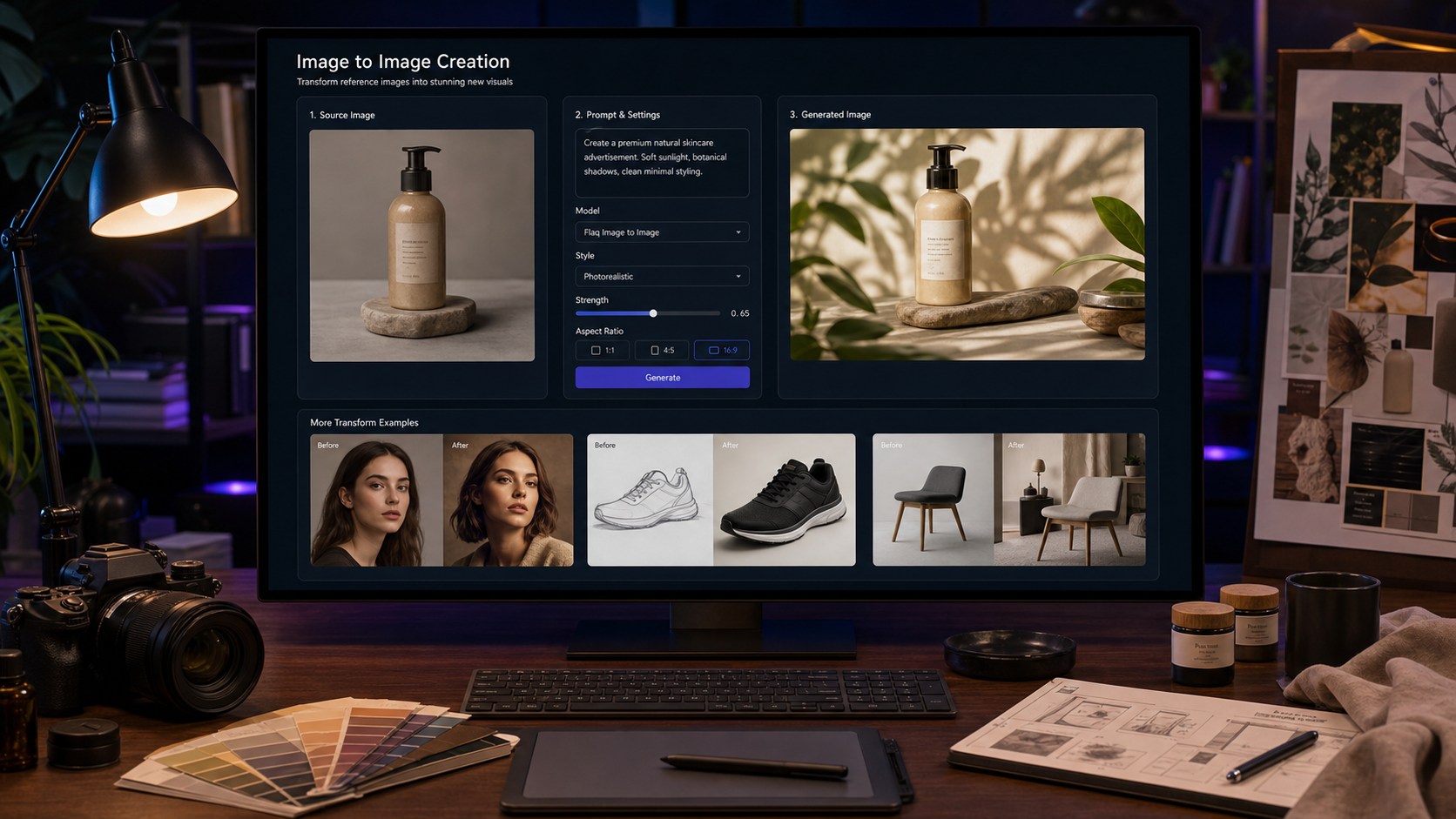
hero-16x9.png: Hosted Grok Imagine Text-to-Video API workflow for creators and developers.section-01-playground-16x9.png: No-code Grok Imagine video generator Playground workflow.section-02-api-workflow-16x9.png: AI video API integration workflow for apps, automation, and marketing pipelines.